Entering and Editing Activities

Entering New Activities

The "Add Activity" button, available from both the Home and My Profile views, allows users to add a Single Activity or Import from CV. The Single Activity option opens a detailed view for creating new records, while the Top Activities section shows the six most frequently used screens. All Activities lists screens based on Main Menu categories, excluding those without permission. A Search Activities bar helps filter screens by keywords. Selecting an activity type opens the record editor for creating new records, with in-line validation for fields. Once saved, activities are added to the faculty’s My Profile view. The Import from CV option allows file imports via the CV Imports menu.
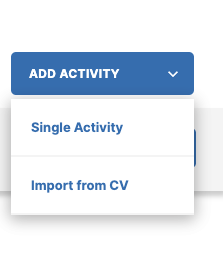
A drop down that says "add activity, single activity, or import from CV"

Single Activity

The Single Activity option opens a detailed view where you can create new records. This view displays all screens where you can add new records.
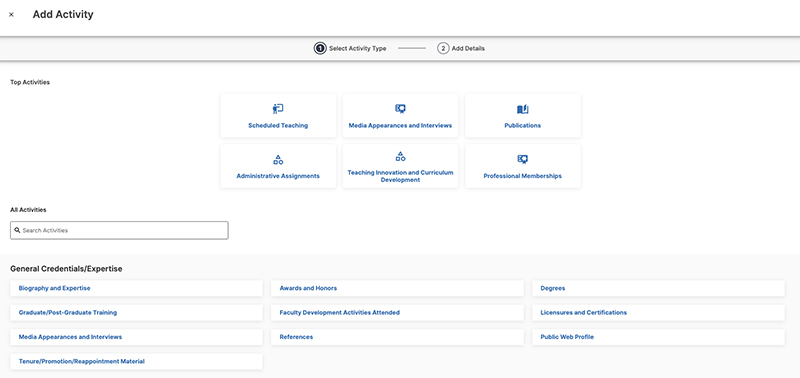
Watermark add single activity screen with options for scheduled teraching, media appearances and interviews, publications, administrative assignments, teaching innovation and curriculum development and professional memberships. It is 1/2 steps.

Top Activities

The Top Activities section displays the six most frequently and recently used screens for creating new records. If faculty have not interacted with six screens, the system displays screens with the highest activity for Manage Data users and from imports (CSV and API).

All Activities

The All Activities section lists all available screens, grouped by the categories found on your Main Menu. Screens you do not have permission to create new records for will not appear in this Add Activity flow.

Search Activities

Use the Search Activities bar to filter screens by keywords. This helps you easily find where a specific activity might belong.

Entering New Activities

Selecting an activity type opens the record editor for that screen. You can then create the new activity record.
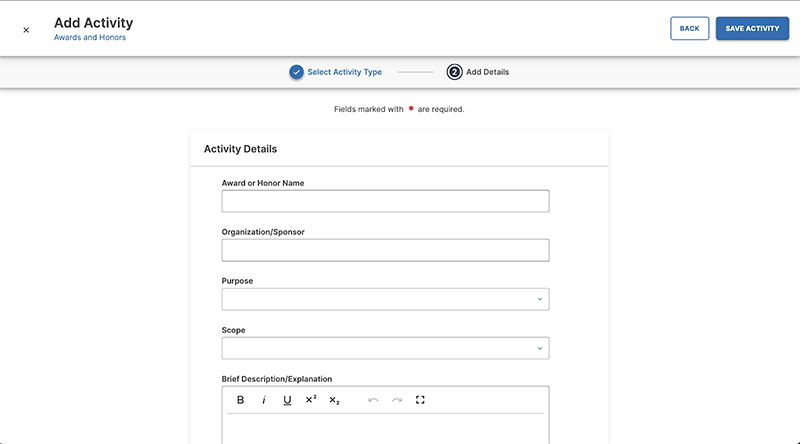
A screen to add activity details with fields for activity details- award or honor name, organization/sponsor, purpose, scope, brief description or explanation

Note: In-line validation for required fields, integer fields, or date fields is present. Additional validation may occur upon Save. If errors are present, you will be brought to the first field with an error to streamline resolution.
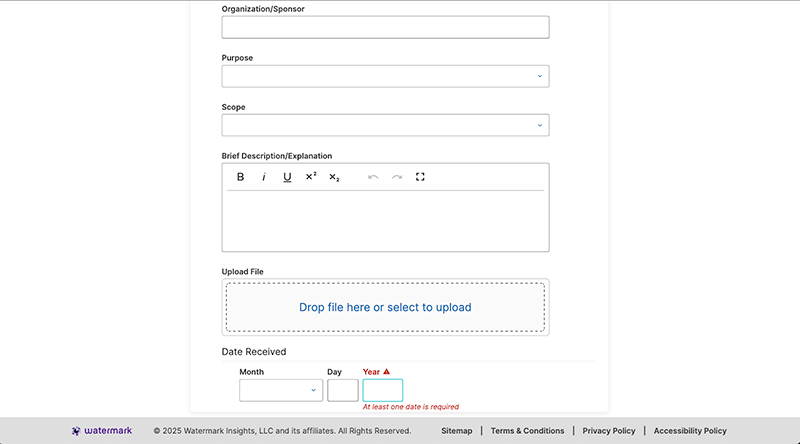
Additional fields - organization/sponsor, purpose, scope, and brief description explanation

Once the new activity is Saved, it is automatically added to the faculty’s My Profile view.

Import from CV

The Import from CV option takes you to the CV Imports menu where you can import a file. For more information, see CV Imports. If you do not see this option under Add Activity, this would mean your Institution does not use CV Imports.
Finding and Editing Existing Activities

This article provides a comprehensive overview of managing your activity records on the My Profile page. It explains how to use the search bar to find records, including advanced tips. Additionally, the article details how to edit, delete, copy, and merge records, and it clarifies what locked entries are and how they differ from standard records you can manage.

Searching for Activities

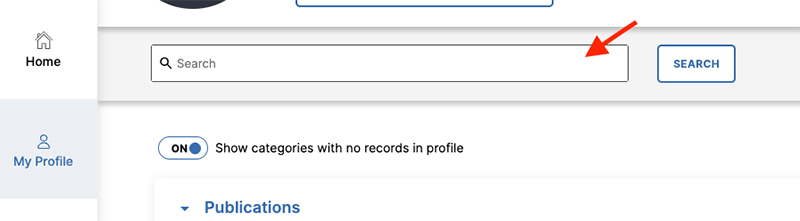
Use the search bar on your My Profile page to quickly find activity records. This search bar provides results from your personal activities.

  1. Navigate to My Profile.
  2. Type a keyword, name, or number into the search bar.
  3. Press Enter or click the search icon.

Watermark search function - search bar

Understanding Search Results

Search results will be highlighted within the activity entry. However, some entries may contain the search result but will not show highlighting if the data in that field is not displayed.

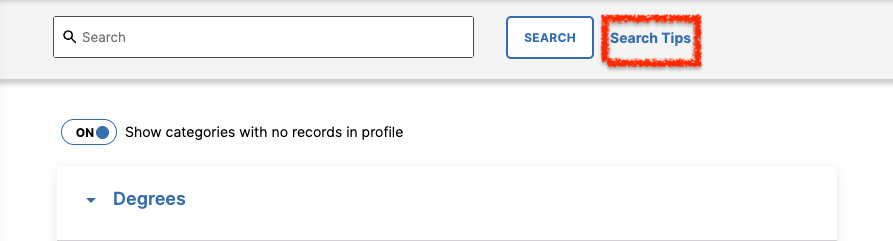
Search tips button next to search bar

How to Use Search on the My Profile Page

Use search tips on the My Profile page to help assist with getting you the best results.

How to Refine Your Search

Use the following methods to find exactly what you are looking for:

  • Search for an Exact Phrase: Add quotation marks around a phrase to search for those exact words in that order. For example, to find all records with the phrase geothermal heating, type "geothermal heating".
  • Combine or Exclude Keywords: Use the words AND, OR, or NOT to narrow or broaden your search.
    • AND: Find records where all keywords are present. For example, to find records that contain both geothermal and heating, type geothermal AND heating.
    • OR: Find records where any of the keywords are present. For example, to find records that contain either geothermal or heating, type geothermal OR heating.
    • NOT: Exclude a keyword from your search. For example, to find records with geothermal but not heating, type geothermal NOT heating..
  • Group Keywords: Use parentheses to keep search terms together. This helps you create more complex searches. For example, to search for records that contain both geothermal and heating but not physics, type (geothermal AND heating) NOT physics.
  • Use a Wildcard: Add an asterisk (*) to the end of a partial word to find any records that contain that partial word. For example, physic* would find physics, physical, physician, and any other words that begin with those letters.

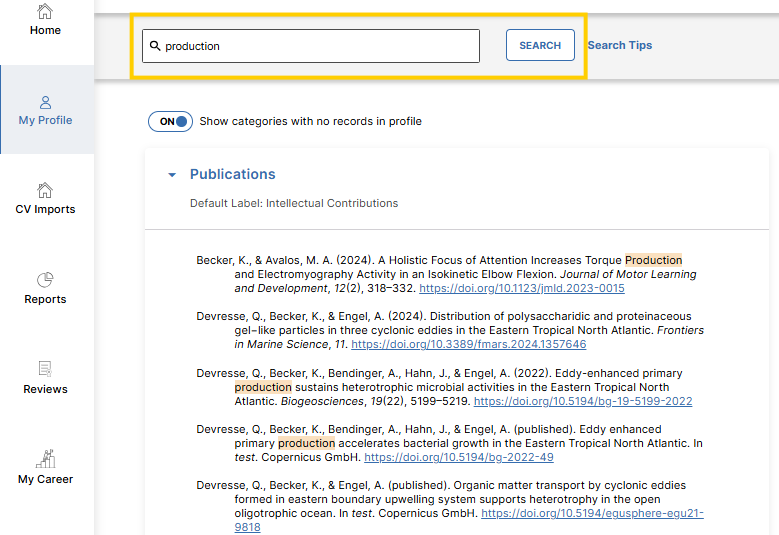
Example below highlights keyword 'production.'

The screen in Watermark under my profile where you can search - this screen searched under the search term "production" and it presented a list of publications with the keyword "production".

Viewing Entries for an Activity Section

  1. Click the name of the activity screen where you want to view records. The name and order of activities on My Profile can be changed by Personalizing the Layout of your Profile.
  2. To edit or view an entry, click the activity row from the summary screen table.
  3. If a specific field is selected, the editor will open with that field in focus.

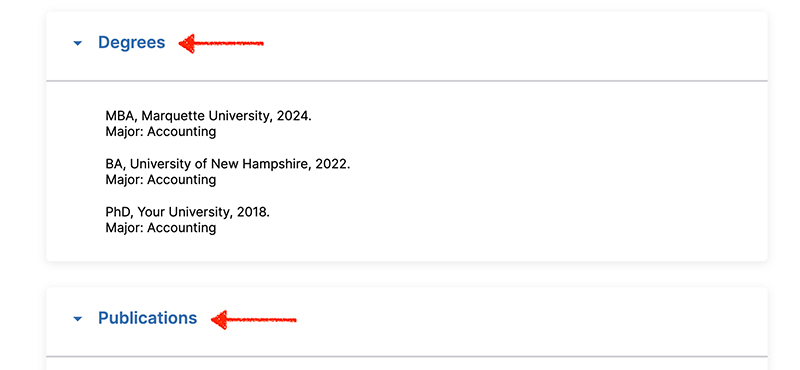
Arrows pointing to the degrees and publications list in Watermark

Editing an Entry

  1. Click an entry row on the summary screen.
  2. The Edit Activity drawer appears on the right side of the screen.
  3. Edit any available fields within the record.
  4. Click Save.
    Important: Always select one of the Save buttons at the top of the screen to preserve modifications. If you attempt to navigate away from a screen with unsaved changes, a warning message will display, asking if you want to return and save your modifications.

Deleting an Entry

  1. Select the checkbox next to the entry or entries that will be permanently deleted.
  2. Click the Delete button.

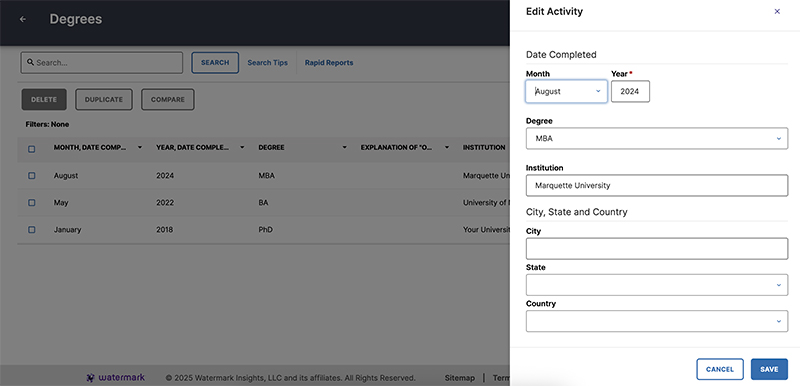
A screen popup within the degree screen that asks you to edit an activity- including fields for date completed, degree, institution, city, state, and country.

Copying an Entry

  1. Select the checkbox next to the entry.
  2. Click the Duplicate button.

Compare and Merge Duplicate Records

Use the Compare option on the Activity summary screen to efficiently compare records and clean up duplicates.

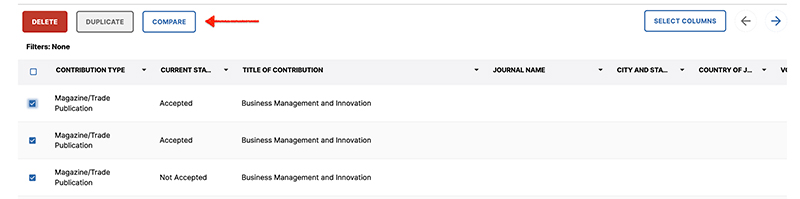
Watermark compare and merge select records

Compare Records

  1. Select up to six potential duplicate records within the summary table.
  2. Click the Compare button.
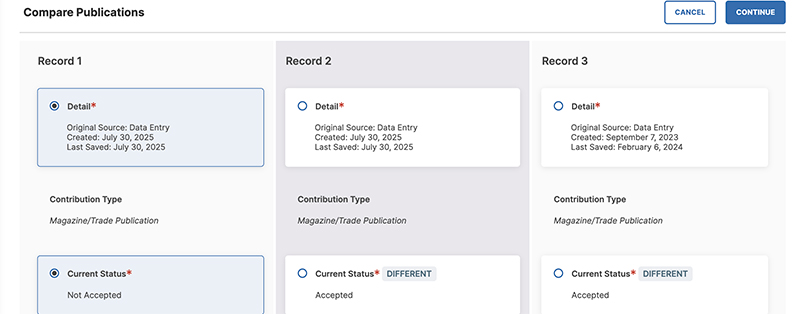
  3. A side-by-side, field-by-field comparison of the selected entries displays.

Watermark's compare publications tool which allows you to compare up to 3 different records of the same selected entries.

Prepare to Merge Records

  1. Choose which record the data should be merged into (the "master record").
  2. Select the desired data for each data field.
  3. Click the Continue button to preview the merge results.

Preview and Finalize Merge

  1. Review the merge results on the preview page.
    • To modify a selection, click the Back button to return to the comparison screen.
    • Edit any fields on the preview page directly to correct information or add new data.
  2. Click the Merge button to combine the records.
    • All compared records, except for the master record, are deleted.

Importing Publications in Bulk

  1. From the Publications screen, select the Import button.
  2. Refer to Publication Import Overview for more assistance.

Locked Entries

A lock icon indicates that another user created the record and linked you as a collaborator. These entries appear in your activities, but cannot be edited or deleted by you.

  1. Contact your Faculty Success Administrator using the Help Resources link for revisions to locked entries.
  2. To learn more about linked records, refer to Managing Linked Records.